
Winadda Login Problem Solution: Complete Troubleshooting Guide
Facing a login problem on Winadda can be frustrating, especially when you want to access your account, check your balance, manage deposits, review withdrawals, or continue your gaming activity. Login issues can happen for many reasons, such as entering incorrect credentials, OTP delays, poor internet connection, browser errors, app issues, account verification checks, or temporary server maintenance.
At Winadda, we understand that users need quick and secure access to their accounts. This guide explains the most common reasons behind Winadda login problems and provides simple solutions to help you regain access safely.
Whether you are unable to log in, not receiving OTP, seeing an invalid password message, or facing account access restrictions, the steps below can help you identify the issue and take the right action.
Why Winadda Login Problems Happen
Login problems are usually caused by small technical issues or account-related checks. In many cases, the issue can be fixed by checking your login details, internet connection, browser settings, or OTP status.
Sometimes, login access may also be affected if your account is under verification, temporarily locked due to multiple wrong attempts, or being reviewed for security reasons. These checks are designed to protect user accounts and prevent unauthorized access.
Common reasons for Winadda login issues include:
- Incorrect username, mobile number, or password
- Forgotten login details
- OTP not received or expired
- Poor internet connection
- Browser cache or cookie issues
- App version or device-related problems
- Multiple failed login attempts
- Account verification or security review
- Temporary platform maintenance
- Use of unofficial or fake login links
Understanding the exact reason makes it easier to solve the problem quickly.
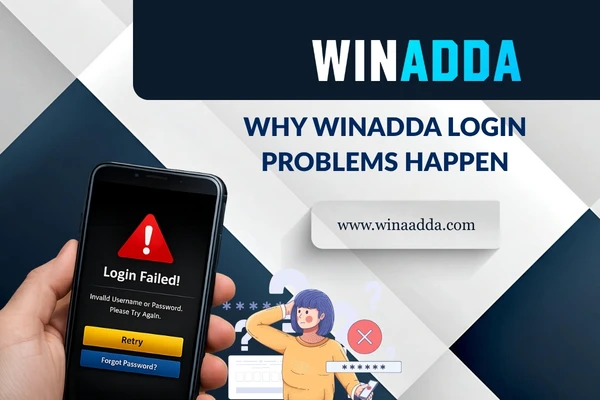
Quick Checklist Before Trying Again
Before assuming that there is a major technical problem, it is useful to check a few basic things first. Many login errors happen because of incorrect details, weak network connection, or expired OTPs.
Before trying to log in again, check the following:
- Are you using the official Winadda login page?
- Is your mobile number, username, or email entered correctly?
- Is your password typed correctly?
- Is Caps Lock turned off?
- Did you enter any extra spaces by mistake?
- Is your internet connection stable?
- Is your OTP still valid?
- Are you using the latest browser or app version?
- Have you tried clearing browser or app cache?
If all these details are correct and you still cannot log in, follow the troubleshooting steps below.
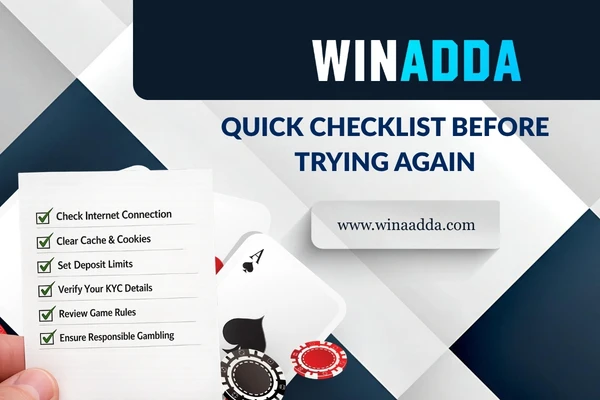
Step 1: Make Sure You Are Using the Official Winadda Login Page
The first and most important step is to confirm that you are using the official Winadda platform. Fake websites or copied login pages may look similar, but they can put your account and personal details at risk.
Always access Winadda through official channels. Avoid clicking login links shared by unknown people on social media, messaging apps, or unofficial websites. If the website link looks unusual, misspelled, or suspicious, do not enter your login details.
To stay safe:
- Use only the official Winadda website or app, if available.
- Avoid third-party login links.
- Do not enter details on unknown pages.
- Check the platform name and spelling carefully.
- Never share your password or OTP with anyone.
- Contact official support if you are unsure about the correct login link.
Using the official login page helps protect your account from fake platforms and unauthorized access.
Step 2: Check Your Winadda Login Details Carefully
One of the most common reasons for a Winadda login problem is incorrect login information. Even a small typing mistake can stop you from accessing your account.
Before trying again, check whether your username, registered mobile number, email ID, or password is entered correctly. Also make sure there are no extra spaces before or after the details.
You should verify:
- Registered mobile number or username
- Email ID, if used for login
- Password spelling
- Capital letters and small letters
- Special characters in the password
- Extra spaces in the login field
If you recently changed your password, make sure you are using the latest one. If you are not sure about your password, it is better to reset it instead of making repeated failed attempts.
Step 3: Reset Your Forgotten Password With Winadda
If you cannot remember your Winadda password, you should use the password reset option instead of guessing multiple times. Repeated wrong attempts may temporarily lock your account for security reasons.
A password reset helps you create a new password and regain access safely. Make sure you have access to your registered mobile number or email ID because OTP verification may be required.
To reset your password:
- Go to the official Winadda login page.
- Select the “Forgot Password” option, if available.
- Enter your registered mobile number or email ID.
- Complete OTP or verification steps.
- Create a new secure password.
- Log in again using the updated password.
When creating a new password, avoid simple combinations such as your name, birth date, mobile number, or “123456”. A strong password should be private, difficult to guess, and different from passwords used on other platforms.
Step 4: Winadda OTP Not Received? Try These Fixes
OTP issues are another common reason why users are unable to log in. Sometimes the OTP may be delayed due to mobile network issues, server load, wrong registered number, or temporary SMS delivery problems.
If you are not receiving OTP, wait for a few minutes before requesting another one. Requesting OTP repeatedly may sometimes create further delay or make the previous code invalid.
If your Winadda OTP is not received, try the following:
- Check whether your registered mobile number is active.
- Make sure your phone has proper network signal.
- Restart your device and try again.
- Wait for a few minutes before requesting a new OTP.
- Check if SMS storage is full.
- Make sure DND or message blocking is not affecting OTP delivery.
- Avoid requesting multiple OTPs too quickly.
- Contact support if the issue continues.
If you receive an OTP after some delay, enter the latest OTP only. Older OTPs may expire and may not work.
Step 5: OTP Expired or Invalid
An OTP is valid only for a limited time. If you enter it too late, it may expire. If you request multiple OTPs, the previous one may become invalid and only the latest OTP may work.
If you see an “OTP expired” or “invalid OTP” message, do not keep entering the same code repeatedly. Instead, request a new OTP and enter it carefully within the given time.
To avoid OTP errors:
- Enter the OTP as soon as you receive it.
- Use the latest OTP only.
- Do not refresh the page while entering OTP.
- Avoid requesting multiple OTPs at the same time.
- Check that the OTP digits are entered correctly.
- Do not share the OTP with anyone.
Winadda will never ask you to share your OTP with any person. OTPs should only be entered on the official login page.
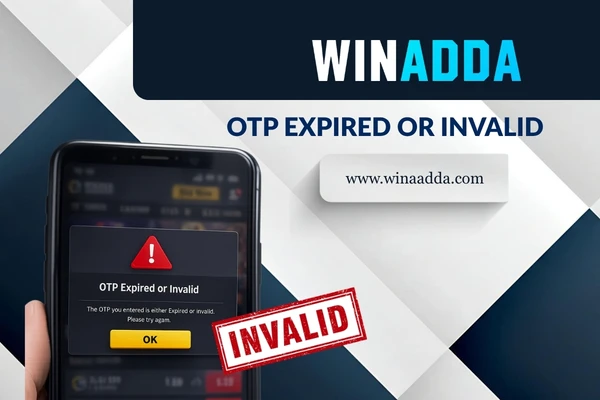
Step 6: Winadda Account Locked Due to Multiple Wrong Attempts
If you enter the wrong password or OTP multiple times, your account may be temporarily locked for security reasons. This is done to protect your account from unauthorized access.
A temporary account lock does not always mean your account is blocked permanently. In many cases, you may need to wait for some time before trying again or reset your password if you are unsure of your login details.
If your account is temporarily locked:
- Stop trying to log in repeatedly.
- Wait for some time before trying again.
- Reset your password if you forgot it.
- Make sure you are using the official login page.
- Contact Winadda support if the lock does not clear.
- Do not ask unofficial agents to unlock your account.
Repeated login attempts can increase the review time, so it is better to follow the correct recovery process.
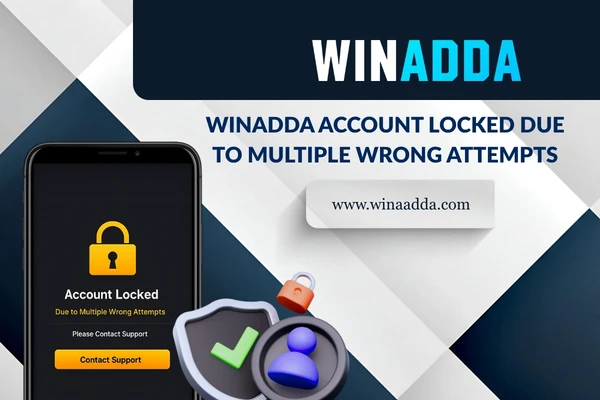
Step 7: Clear Browser Cache and Cookies
Sometimes, login problems are caused by browser cache, cookies, or outdated saved data. If the browser has stored old session details, the login page may not load properly or may show errors.
Clearing cache and cookies can refresh the browser and solve many login-related problems. You can also try opening the login page in incognito or private browsing mode.
If you are logging in through a browser, try these steps:
- Clear browser cache and cookies.
- Close and reopen the browser.
- Use incognito or private mode.
- Update your browser to the latest version.
- Try a different browser.
- Disable unnecessary browser extensions.
- Refresh the login page and try again.
Outdated browsers or heavy extensions can sometimes interfere with login pages, OTP pages, or account sessions.
Step 8: Fix Winadda Mobile App Login Issues
If you are using a Winadda app or mobile shortcut, the login issue may be related to app cache, outdated version, phone storage, or device settings. App-related login problems can usually be fixed with simple troubleshooting.
Before reinstalling anything, check whether your internet connection is stable and whether the app is updated. An older app version may not work properly after platform updates.
For mobile app login problems, try the following:
- Restart your mobile device.
- Update the app, if an update is available.
- Clear app cache from device settings.
- Check if your phone has enough storage.
- Close background apps and try again.
- Switch from mobile data to Wi-Fi or vice versa.
- Reinstall the app only if basic steps do not work.
- Use the official app source, if available.
Never download app files from unknown or suspicious websites, as they may be unsafe.
Step 9: Check Your Internet Connection
A weak or unstable internet connection can prevent successful login. If the login page is loading slowly, OTP page is not opening, or session keeps timing out, your network may be the issue.
Try switching between Wi-Fi and mobile data to see if the problem improves. If you are using public Wi-Fi, it may have restrictions that block gaming or payment-related platforms.
To improve connection stability:
- Use a strong Wi-Fi or mobile data network.
- Restart your router or mobile internet.
- Avoid restricted public Wi-Fi.
- Turn off VPN if it is causing conflict.
- Move to an area with better network signal.
- Close other apps using heavy data.
- Refresh the page and try again.
A stable internet connection helps the login page, OTP verification, and account dashboard load correctly.
Step 10: Disable VPN or Proxy If Login Fails
Using a VPN, proxy, or location-changing tool may sometimes affect login access. Some platforms may restrict login attempts if the location, device, or IP address looks unusual.
If you are using a VPN and cannot log in, try disabling it and accessing Winadda again through a normal internet connection. This may help if the login system is detecting unusual activity.
You should check:
- Whether VPN is active
- Whether proxy settings are enabled
- Whether your location is changing frequently
- Whether you are logging in from a new device
- Whether repeated login attempts are happening from different networks
For better account safety, use a trusted device and stable internet connection when logging in.
Step 11: Check If Your Winadda Account Is Under Review
In some cases, users may not be able to log in because their account is under verification or security review. This can happen if suspicious activity is detected, account details need verification, or platform rules require additional checks.
An account review is not always permanent. It may simply mean that support or verification teams need to confirm details before restoring access.
Your account may be under review if:
- Multiple wrong login attempts were made.
- Login activity looks unusual.
- Account details require verification.
- KYC is pending or needs rechecking.
- Suspicious activity was detected.
- The account may have violated platform rules.
- Multiple accounts are connected to the same user details.
If you believe your account is under review, contact official Winadda support and provide the requested information clearly.
Step 12: Wait During Server Maintenance or Technical Updates
Sometimes, login access may be temporarily unavailable due to platform maintenance, technical updates, server load, or high traffic. During such times, users may see loading errors, timeout messages, or temporary login failure.
If the issue is caused by maintenance, it may not be solved by changing your password or device. In that case, it is better to wait and try again later.
Login may be temporarily affected during:
- Scheduled maintenance
- Technical updates
- Server load
- High traffic periods
- Payment system updates
- Security upgrades
- Temporary platform downtime
If many users are facing the same login issue, it may be a platform-side update. You can check official support updates or contact support for confirmation.
Common Winadda Login Error Messages and Meaning
Different login errors can indicate different issues. Understanding the message can help you take the right step instead of trying random fixes.
| Error Message | What It Usually Means | What You Should Do |
|---|---|---|
| ❌ Invalid Credentials | Username, mobile number, or password is incorrect. | Recheck your details or reset your password. |
| ⏳ OTP Expired | The OTP was entered after its validity period ended. | Request a new OTP and try again. |
| 🔑 Invalid OTP | The OTP entered is incorrect or outdated. | Use the latest OTP received and enter it carefully. |
| 🔒 Account Locked | Multiple unsuccessful login attempts were detected. | Wait for the lock period to end or contact support. |
| ⌛ Session Timeout | Your session expired due to inactivity. | Refresh the page and log in again. |
| 🔍 Account Under Review | Your account is undergoing verification or security checks. | Contact official Winadda support for assistance. |
| ⚠️ Server Error | A temporary issue occurred on the platform server. | Please wait a few minutes and try again later. |
| 🌐 Page Not Loading | Internet connection, browser, or server issue detected. | Check your connection, refresh the page, or clear browser cache. |
If the same error appears repeatedly, take a screenshot and share it with Winadda support.
Security Tips to Avoid Future Winadda Login Problems
Login security is not only about fixing technical errors. It is also about protecting your account from misuse. Users should follow safe login habits to avoid unauthorized access and unnecessary account restrictions.
Always keep your login details private and avoid using simple passwords. If you notice unusual activity in your account, change your password and contact official support.
To keep your Winadda account secure:
- Use a strong and unique password.
- Never share your password or OTP.
- Avoid logging in from unknown devices.
- Do not use fake or unofficial login links.
- Log out after using shared devices.
- Keep your registered mobile number active.
- Update your password from time to time.
- Avoid using public Wi-Fi for account access.
- Report suspicious activity immediately.
Winadda will never ask users to share passwords, OTPs, or sensitive login details with any person.
How to Avoid Fake Winadda Login Links
Fake login links are one of the biggest risks for users. These links may look similar to the real platform but can be created to collect login details, OTPs, or payment information.
Users should be extra careful when opening links shared through WhatsApp, Telegram, SMS, social media, or unknown websites. If someone promises special access, quick withdrawals, or guaranteed benefits through a separate login link, treat it as suspicious.
Avoid fake login risks by following these steps:
- Type the official Winadda website directly, if known.
- Do not click random links from unknown people.
- Check website spelling before entering details.
- Avoid login pages asking for unnecessary information.
- Do not share OTP after clicking any link.
- Contact official support if you are unsure.
- Report suspicious links immediately.
Using only official channels is the safest way to protect your account.
Responsible Account Access
Winadda encourages users to access their accounts responsibly and securely. Account access should be limited to the registered user only. Sharing login details with friends, agents, or third parties can create security risks and may lead to account restrictions.
Responsible account access also means following platform rules, using correct details, and avoiding suspicious activity. If you use the platform from multiple devices or locations, login checks may be triggered for account safety.
Users should remember:
- Use only your own account.
- Do not allow others to access your login.
- Keep your registered details updated.
- Follow platform terms and conditions.
- Use the platform only if legally eligible in your location.
- Contact support if you notice unauthorized access.
Safe account access helps protect your personal information, transaction activity, and platform balance.
Winadda Login Problem Solution: Final Advice
Most Winadda login problems can be solved by checking login details, resetting the password, waiting for OTP, clearing cache, updating the app or browser, checking internet connection, or contacting official support. The key is to avoid repeated wrong attempts and follow the correct troubleshooting steps.
If your issue is related to account review, verification, or security restrictions, support assistance may be required. In such cases, provide accurate details and avoid sharing sensitive information with unofficial sources.
For a smooth login experience, always use the official Winadda platform, keep your credentials secure, complete verification when required, and follow safe login practices.
Winadda Login Problem FAQs
1. Why am I unable to log in to my Winadda account?
You may be unable to log in due to incorrect credentials, forgotten password, OTP delay, weak internet connection, browser cache issues, app problems, account lock, or security review.
2. What should I do if my Winadda password is wrong?
If your password is not working, check whether you entered it correctly. If you are unsure, use the forgot password option and create a new secure password.
3. Why am I not receiving Winadda OTP?
OTP may be delayed due to poor mobile network, inactive registered number, SMS delivery issues, server delay, or repeated OTP requests. Wait for a few minutes, check your network, and request a new OTP if needed.
4. What does invalid OTP mean?
Invalid OTP usually means that the code entered is incorrect, expired, or not the latest OTP. Request a new OTP and enter it carefully within the given time.
5. Why is my Winadda account locked?
Your account may be temporarily locked because of multiple wrong login attempts or suspicious login activity. Wait for some time, reset your password if required, or contact support.
6. Can browser cache cause login problems?
Yes. Old cache and cookies can cause login errors, page loading issues, or session problems. Clearing browser cache or using incognito mode may help.
7. What should I do if the Winadda app is not logging in?
Restart your device, check your internet connection, update the app, clear app cache, and try again. Make sure you are using the official app source, if available.
8. Can VPN cause Winadda login issues?
Yes. VPN or proxy usage may sometimes trigger login issues if the system detects unusual location or network activity. Try disabling VPN and logging in again.
9. How can I contact Winadda support for login issues?
Use only official Winadda support channels. Share your registered details, error screenshot, device information, and a short explanation of the issue for faster help.
10. Does Winadda ask for password or OTP to solve login problems?
No. You should never share your password, OTP, login code, or sensitive details with anyone. Any person asking for such information should be treated as suspicious.